 Air Calendar
CALENDAR CONNECTION GUIDE ·
From connecting a calendar
to your first sync.
Choose the service you want to bring events from, then follow the screens below.
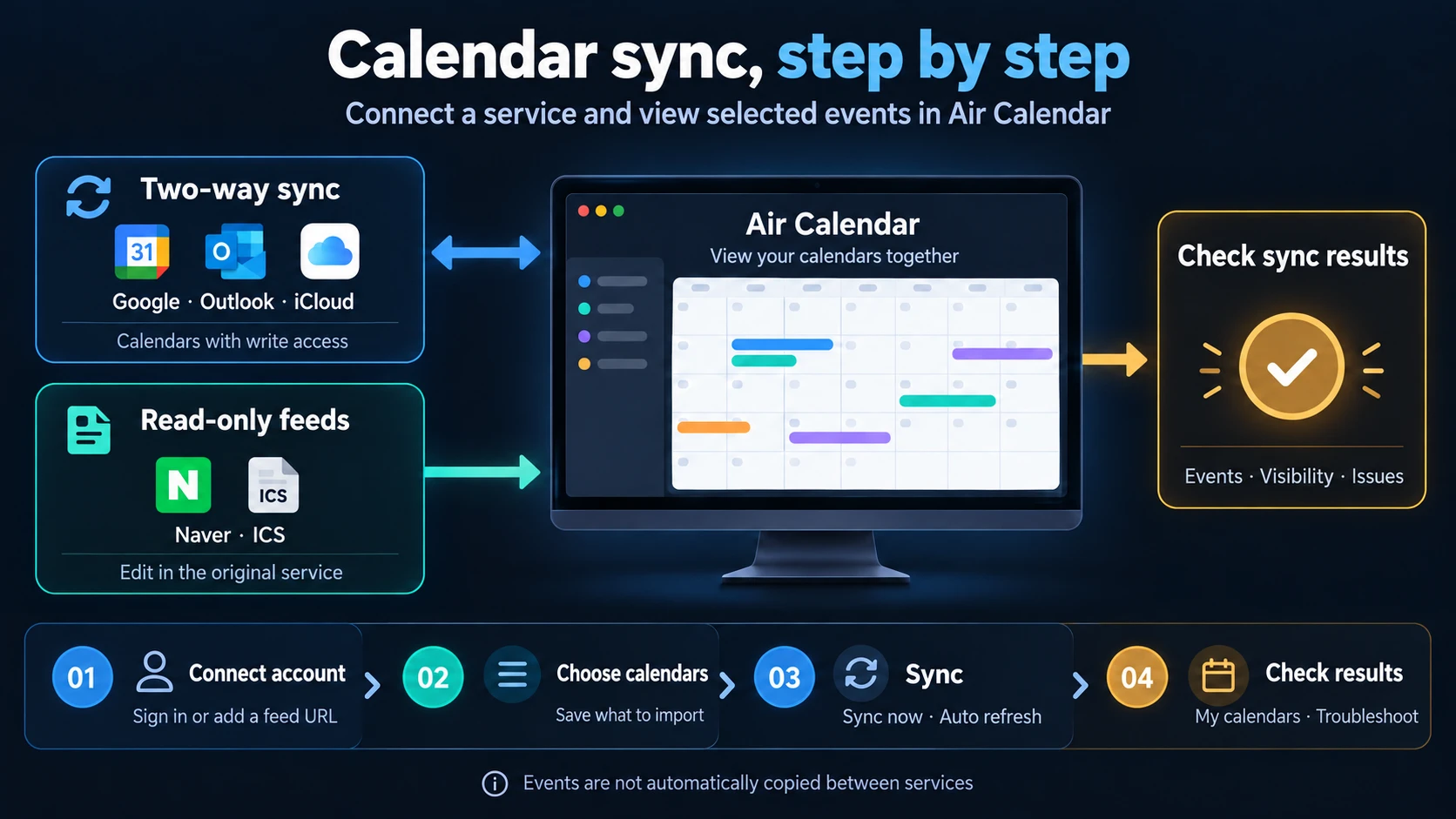
Connect an account → Choose calendars → Run sync → Check the result.
Connecting an external account is optional. You can use local calendars without signing in.
START HERE
01. Open the settings window
- Click the sync icon at the top of Air Calendar.
You can also open Settings → Calendars and sync → Calendars / accounts and synchronization. The window that opens is titled Calendar management.
- Click the ‘Connections and subscriptions’ tab at the top.
The window may initially show My calendars. To add an account, start in Connections and subscriptions. The Google Calendar and Subscribe by address cards appear first.
- Click ‘Connect account’ for your service.
To find Outlook, iCloud, Naver, Yahoo, Zoho or Fastmail, click Show services beside Connect another account and scroll down. If you have already connected an account, the button may instead read Connection settings, Reconnect or Choose calendars to import.
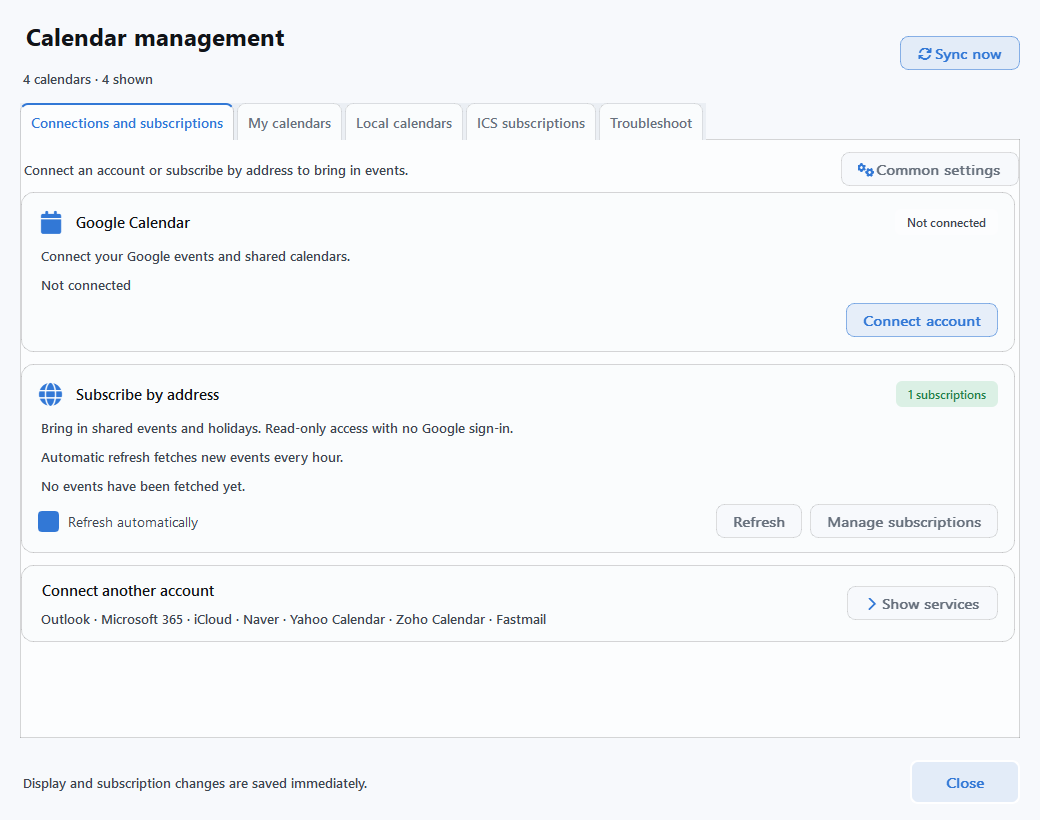
The screenshots show the matching app language with example data. Account names, calendar names and connection status vary by user. Click an image to view it at full size. In some app languages, newer controls still use English; this guide follows the labels actually shown.
BEFORE CONNECTING
02. Check what your service requires
‘Two-way’ means that event changes are sent to and received from that service. It does not automatically copy Google events to Outlook. Shared calendars may be read-only, depending on the write permissions granted to your account.
| Service | What to prepare | Event editing |
|---|---|---|
| Google Calendar ↗ | Google account + Desktop app OAuth JSON file | Two-way with write permission |
| Outlook · Microsoft 365 ↗ | Microsoft account + client ID for a calendar integration app | Two-way with write permission |
| iCloud ↗ | Apple Account email + app-specific password | Two-way for personal events¹ |
| Naver ↗ | Naver ID + authentication password | Read-only² |
| Yahoo · Zoho · Fastmail ↗ | Account email + the authentication password required by the service | Two-way for personal events¹ |
| ICS subscriptions ↗ | An iCal / ICS subscription address supplied by the service | Read-only |
¹ Edit recurring and invited CalDAV events in the original service. ² Naver connections on Windows may be restricted by service policy.
Use only the app's file picker and password fields described below. You do not need to enter anything on this guide page. Do not publish JSON files, app-specific passwords or private ICS addresses in posts or screenshots.
GOOGLE CALENDAR
Connect Google Calendar
The current app connects using a Desktop app OAuth credentials file that you provide. Create the file once in Google Cloud, then sign in with the Google account you want to use in Air Calendar.
A. One-time preparation: create a Google credentials JSON file
- Create a project in Google Cloud.
Sign in to Google Cloud Console. Open the project selector at the top and choose New project. Enter a name, create the project, then select it.
- Enable the Google Calendar API.
Open APIs & Services → Library, search for Google Calendar API and click Enable or Enable API.
- Set up the consent screen in Google Auth Platform.
Open Google Auth Platform → Branding. For a new setup, click Get started and enter an app name (for example, My Air Calendar connection), a support email and a contact email. For a personal Gmail account, set the audience to External. For an internal organization account, follow your administrator's policy.
- Check test users and calendar permissions.
If an external app is in testing mode, open Audience → Test users → Add users, enter the Google email you will connect and save it. Under Data Access → Add or remove scopes, select the Google Calendar API scope
https://www.googleapis.com/auth/calendarand save. - Create a ‘Desktop app’ client and download its JSON file.
Click Clients → Create client. Choose Desktop app as the application type, enter a name and create the client. Download its JSON file and keep it in an easy-to-find folder on your PC. A file created for the Web application type cannot be used here.
Google's screens may vary by account and language. See Google's official desktop authentication setup guide and consent screen and test user instructions. You do not need to install Python or run the sample code for these steps.
B. Connect in Air Calendar and choose calendars to import
- Click ‘Connect account’ on the Google Calendar card.
In Google settings, select Account connection. Expand OAuth file and connection help, then use Credentials file → Browse to select the OAuth JSON file you downloaded. On a PC being set up for the first time, this section may already be expanded.
- Click ‘Connect Google account’ and approve access in your browser.
Choose the Google account you want to use, review the calendar access request and approve it. The app waits up to 3 minutes. Return to Air Calendar when approval is complete. Make sure the account you sign in with is also the one you added as a test user.
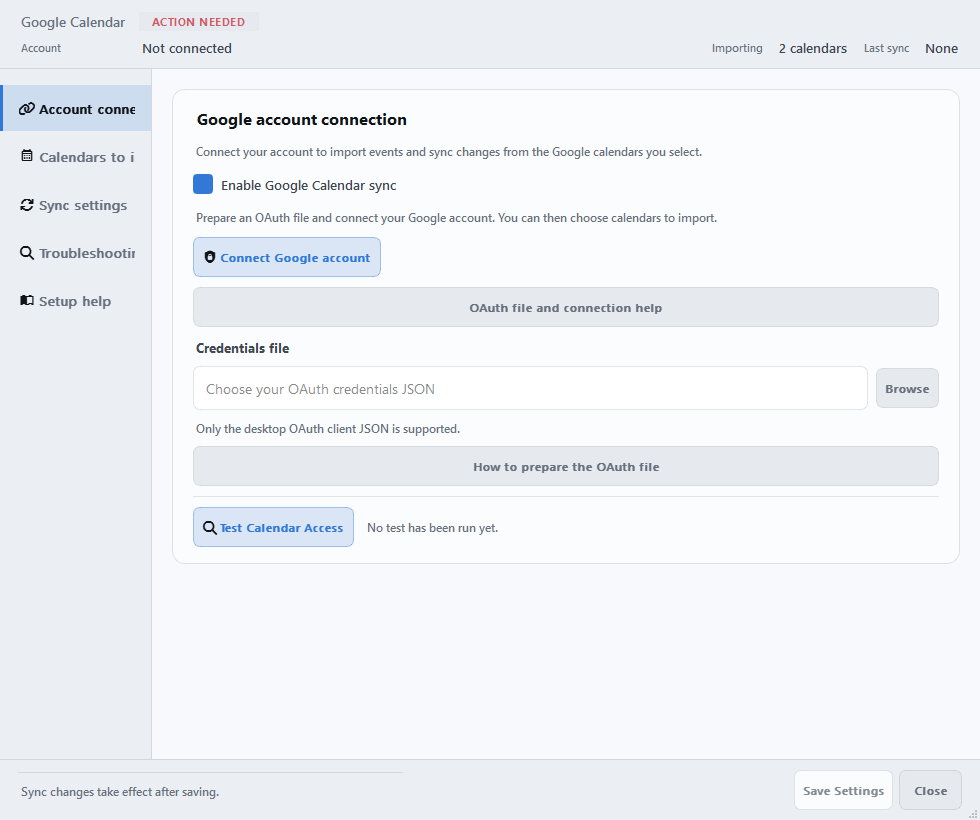
- Under ‘Calendars to import’, check ‘Import’.
The app opens this screen after connecting successfully. Select only the personal, work or shared calendars you want to use. If a newly created calendar is missing, click Refresh list. Also check whether each calendar is Editable / Read-only.
- Click ‘Save Settings’ at the bottom.
Check the confirmation that settings were saved, then click Close. Save Settings does not close the window. If you close it before saving, the import choices you just made will not be applied.
- Return to Calendar management and click ‘Sync now’.
You can also click Refresh on the service card to update Google alone. Finish the sync and visibility checks below to complete your first connection.
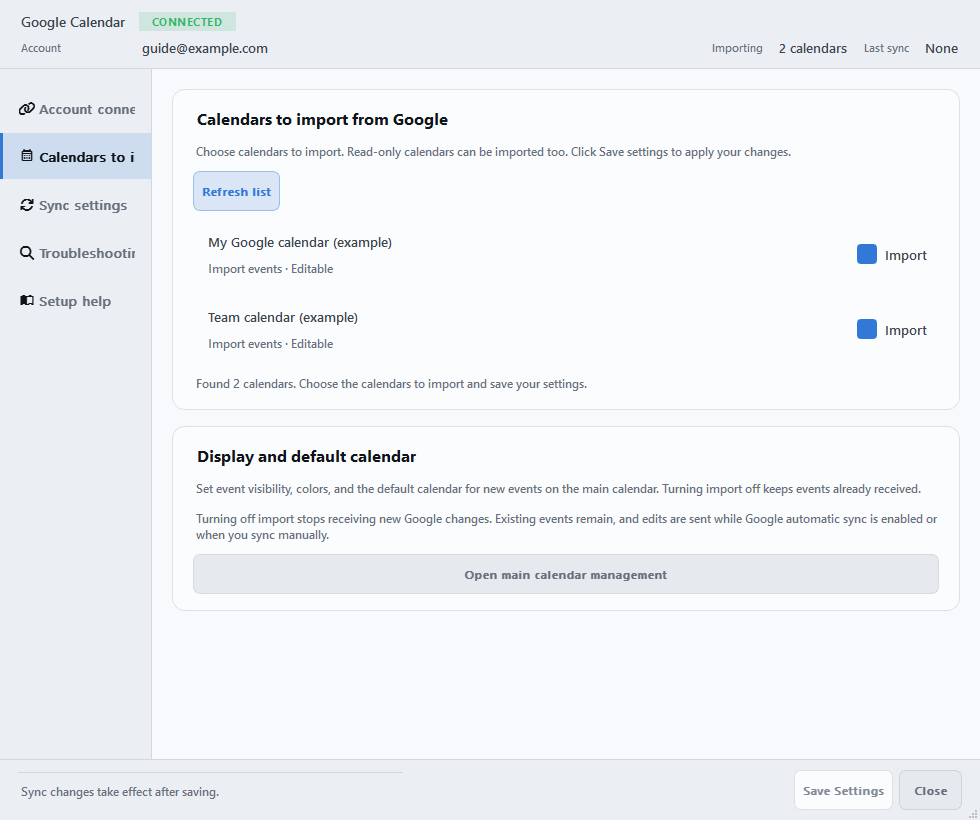
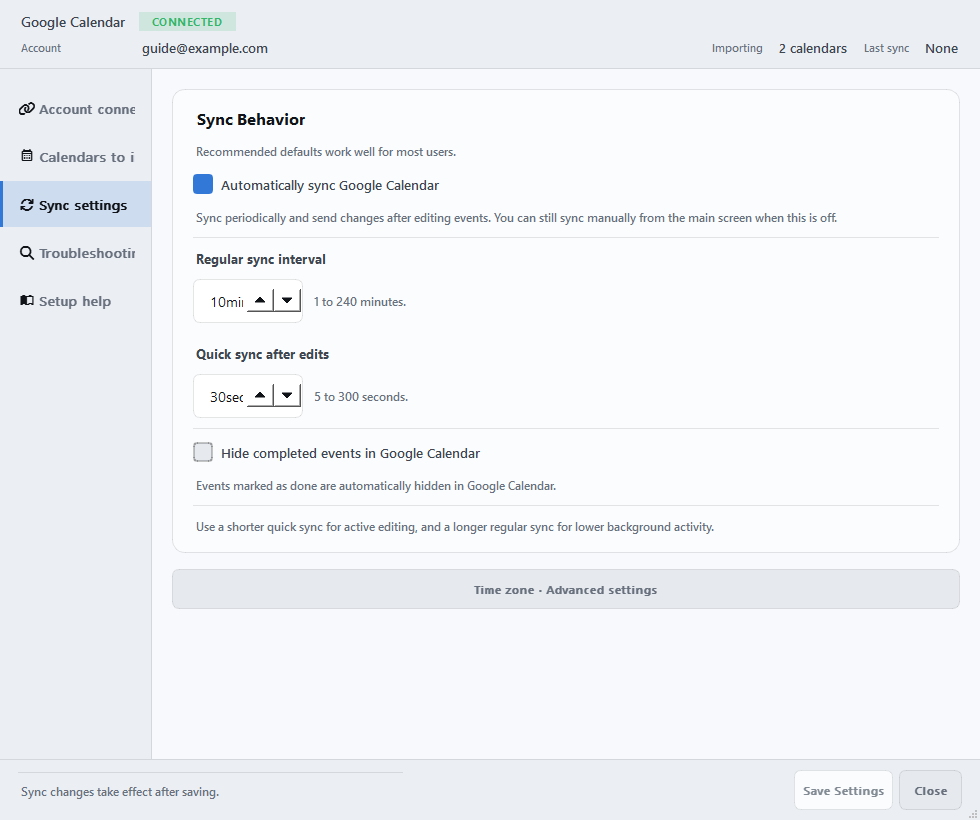
The access test checks permissions. After syncing, look at the calendar to confirm that events have arrived. Google automatic sync is on by default, with a regular interval of 10 minutes and a quick sync interval of 30 seconds after edits.
OUTLOOK · MICROSOFT 365
Connect Outlook
You can connect a personal Microsoft account or a work or school account. The current connection method requires the client ID of a Microsoft app registered for calendar integration. If your organization has provided an ID, skip the preparation and start at B.
A. If you do not have a client ID: preparation for an administrator or app registration owner
- Register an app in Microsoft Entra.
In the Microsoft Entra admin center, open Entra ID → App registrations → New registration. Enter a name and select Accounts in any organizational directory and personal Microsoft accounts as the supported account type. If you cannot register apps, ask your organization's administrator.
- Add the desktop sign-in address.
In the registered app, open Authentication → Add a platform → Mobile and desktop applications. Add
http://localhostas a redirect URI and save. - Add calendar permissions.
Under API permissions → Add a permission → Microsoft Graph → Delegated permissions, check
Calendars.ReadWriteandUser.Read. Obtain administrator consent if your organization requires it. - Copy the ‘Application (client) ID’.
Use the UUID-format ID shown on the app's Overview page in Air Calendar. A client secret is not required.
Microsoft's official app registration guide · Desktop app authentication setup
B. Sign in through the app and import events
- Expand the additional service list in ‘Connections and subscriptions’.
Click Outlook · Microsoft 365 → Connect account. In the window that opens, select the 1. Connect account tab.
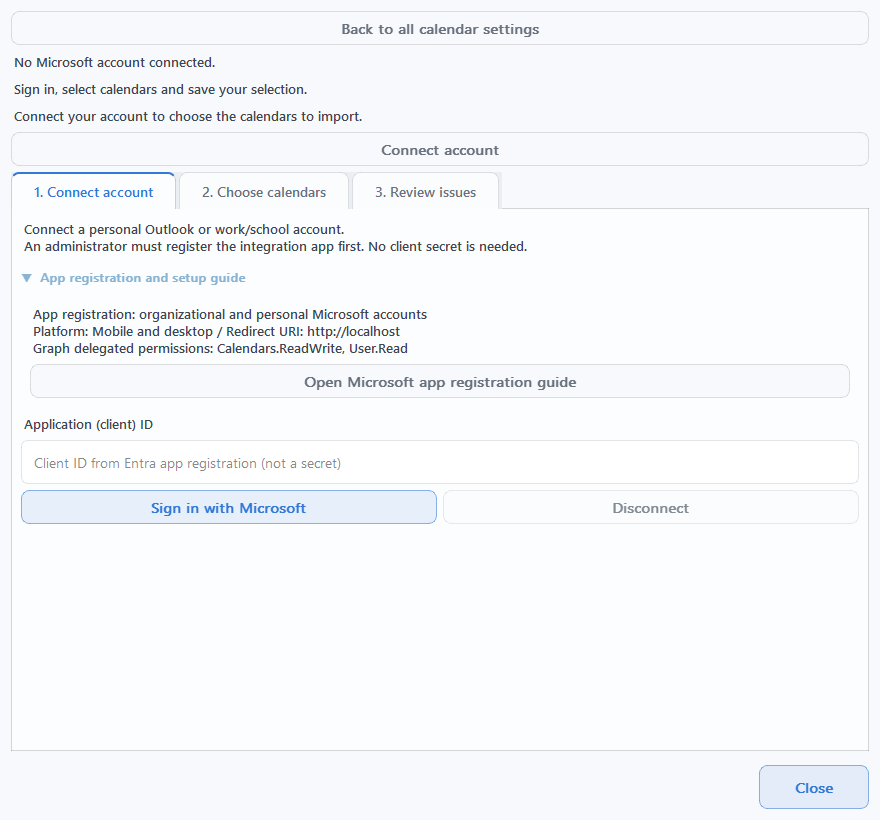
- Expand ‘App registration and setup guide’ and enter your client ID.
Enter the Application (client) ID prepared for calendar integration. Click Sign in with Microsoft and complete sign-in and permission approval in your browser. Work or school accounts may require administrator approval or MFA.
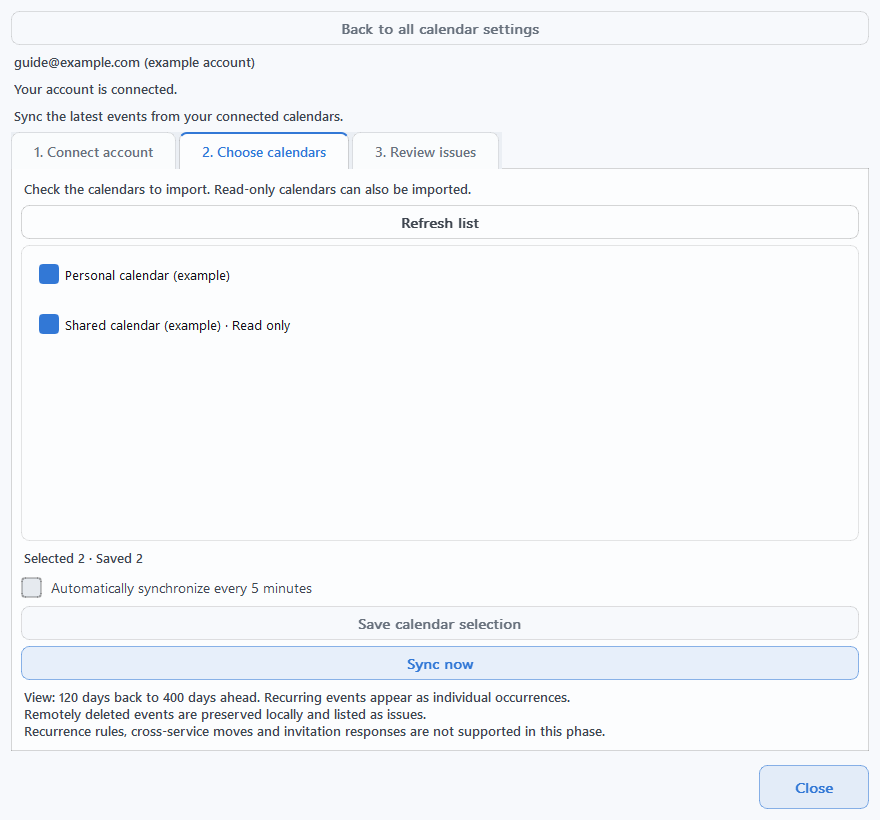
- In ‘2. Choose calendars’, check the calendars to import.
Click Save calendar selection, then Sync now. If you have changed your selection but have not saved it yet, Save selection and sync lets you do both at once.
- Check the result, then enable automatic sync if you want it.
Check for Sync completed and the number of imported items. To enable automatic updates, save your calendars first, then check Automatically synchronize every 5 minutes. Automatic sync is off when you first connect an account.
Outlook currently imports events from 120 days before today to 400 days ahead. Editing full recurrence rules, responding to invitations and moving connected events to another calendar are not supported. Use Outlook itself for these actions.
View the Outlook calendar selection screen
ICLOUD · CALDAV
Connect iCloud
A. Generate an app-specific password with Apple
- Use an Apple Account with two-factor authentication enabled.
Sign in to your Apple Account.
- Create a password under ‘Sign-In and Security → App-Specific Passwords’.
Click the generate button and enter a name, such as Air Calendar. Keep the generated password ready to paste into the app. This connection uses an app-specific password instead of your usual Apple Account sign-in password.
See Apple's official app-specific password instructions. Changing or resetting your main Apple Account password revokes existing app-specific passwords, so you will need to generate a new one.
B. Enter your email and app-specific password in Air Calendar
- In the additional service list, click ‘iCloud → Connect account’.
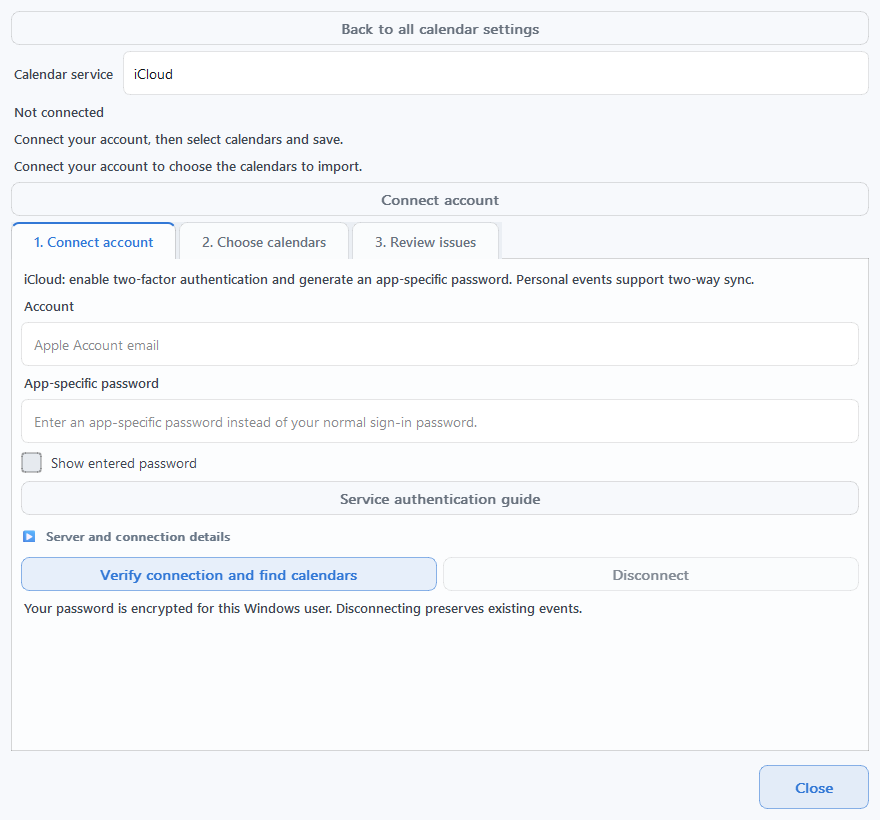
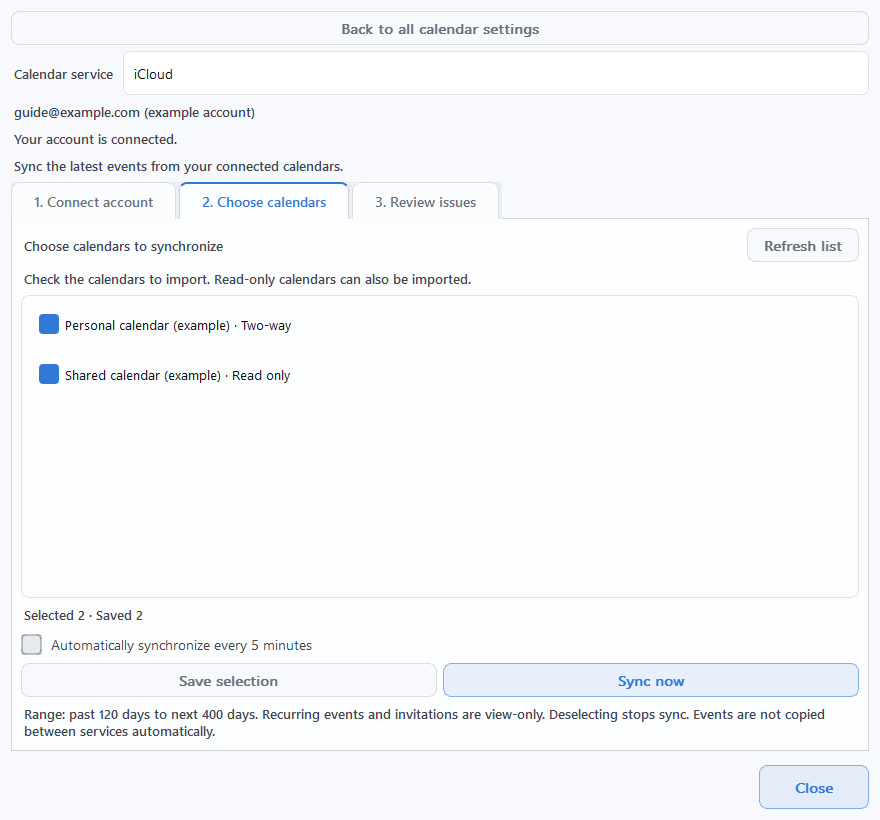
The Connect a CalDAV account window opens. Check that Calendar service at the top is set to iCloud, then select the 1. Connect account tab.
- Enter your Apple email under ‘Account’ and the generated password under ‘App-specific password’.
The app sets the server address automatically. Click Verify connection and find calendars and wait for the calendar list. The password field may clear when the connection starts.
- Check calendars in ‘2. Choose calendars’, then click ‘Save selection’.
Next, click Sync now. If you have not saved yet, use Save selection and sync. Signing in and loading the calendar list alone do not finish importing events.
- Check that events have arrived and choose whether to enable automatic sync.
If you want automatic updates, save your calendars, then check Automatically synchronize every 5 minutes. Personal events with write permission sync both ways. Edit recurring and invited events in the original service.
View the CalDAV calendar selection screen
MORE CALDAV SERVICES
Connect Yahoo, Zoho or Fastmail
These three services use the same Connect a CalDAV account window as iCloud. Open Connections and subscriptions → Show services and click Connect account for your service, or change Calendar service at the top of the CalDAV window.
- Yahoo Calendar
- Enter your full email address in Account and a password generated by Yahoo in App-specific password. Check whether you can generate one in Yahoo's official app password help. Yahoo! JAPAN accounts are not supported.
- Zoho Calendar
- First, choose the calendars to synchronize in Zoho Calendar under Settings → Synchronize → CalDAV. In the app, enter your full email address and authentication password, then choose the Account data center server matching your account's region. An app-specific password is required if you use two-factor authentication. See Zoho's official CalDAV guide.
- Fastmail
- In Fastmail, open Settings → Privacy & Security → Connected apps & API tokens, go to app password management and create an app password with Calendars access. Enter your full sign-up email address and this password in the app. The Basic plan does not support CalDAV or app passwords. See Fastmail's official app password guide.
- Enter the service's details, then click ‘Verify connection and find calendars’.
If the connection fails, click Service authentication guide in the window to open the service's official help.
- Check the calendars you want in ‘2. Choose calendars’.
Import events with Save selection → Sync now or Save selection and sync. Then enable Automatically synchronize every 5 minutes if needed.
CalDAV imports events from 120 days before today to 400 days ahead. Personal events sync both ways when you have write permission. Edit read-only calendars, recurring events and invited events in the original service. Moving connected events to a different calendar is also unsupported.
ICS SUBSCRIPTION · READ ONLY
Subscribe to a calendar with an ICS address
Import read-only calendars that provide a subscription address, such as holidays, events or public schedules. No Google or Microsoft sign-in is needed.
- Copy an iCal / ICS subscription address from the original service.
In your calendar service's sharing or export settings, look for a link labeled iCal, ICS or subscription address. This is different from the normal calendar webpage URL in your browser. Addresses starting with
https://,http://orwebcal://are supported. - In Calendar management, open ‘ICS subscriptions’ and click ‘Add ICS subscription’.
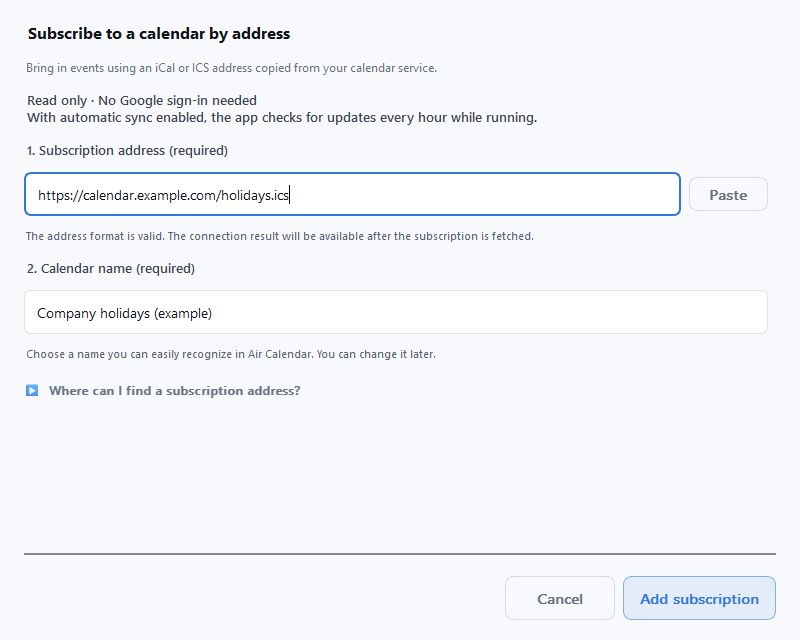
The Subscribe to a calendar by address window opens. Paste the link into 1. Subscription address (required), then enter a recognizable name, such as Team events, in 2. Calendar name (required).
- Click ‘Add subscription’ and wait for the import result.
The button becomes available when the address format and name are valid. The address format is valid confirms the format only; it does not mean the app has connected to the server or received events. The first refresh starts after you add the subscription.
- Select the subscription you added and check its ‘Last refreshed’ time.
If you see No events have been fetched yet., the first fetch has not completed. Enable Refresh this subscription and try Refresh this subscription now. Also enable Show in calendar views to display its events.
View ICS subscription visibility and refresh settings
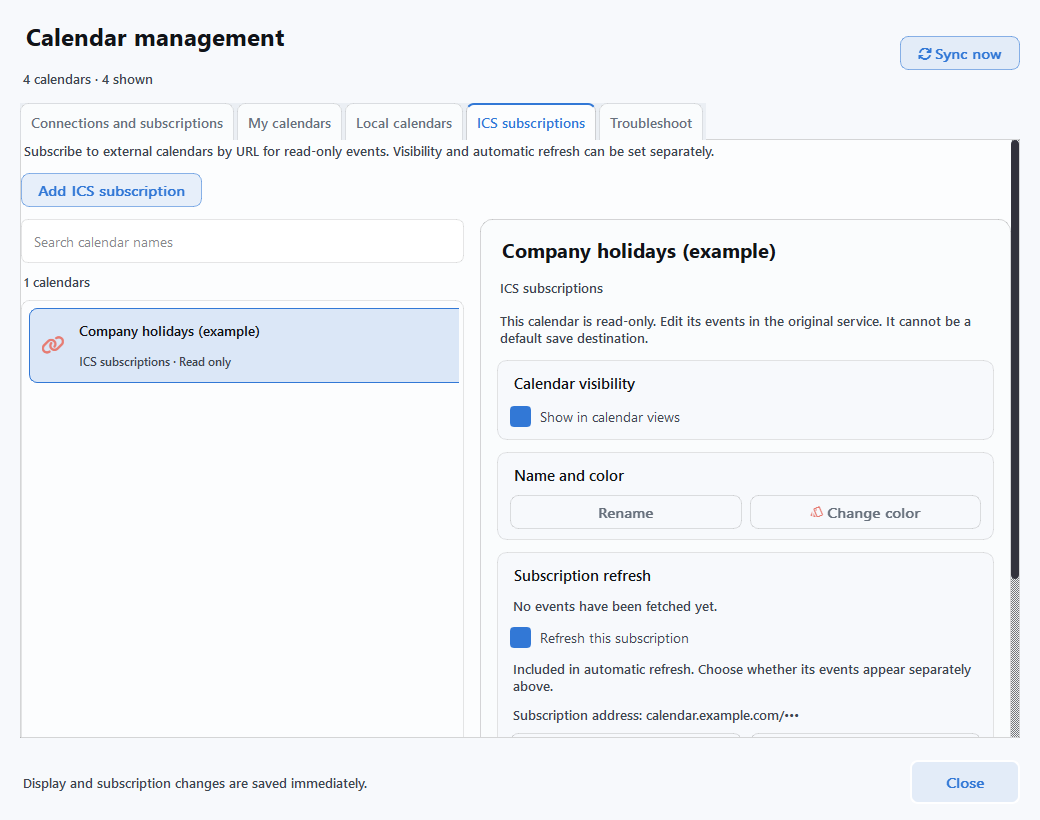
Select the same subscription and use Edit subscription URL → Save changes to preserve its name, color, visibility settings and existing events. The app checks hourly while it is running, provided automatic refresh and refresh for that subscription are both enabled. Add, edit and delete the original events in the original service.
CHECK THE RESULT
03. Check sync and event visibility
- Save your calendar selection, then click ‘Sync now’.
The common button in Calendar management refreshes your connected services together. You can also check one service using its Refresh button or Sync now in that service's settings. The default shortcut is F5; use your assigned key if you have changed it.
- Check both the completion status and an actual event.
Check the latest sync or refresh time and result message. Note the date and title of an event in the original service, then open the same date in Air Calendar. Signing in successfully does not mean that events have finished downloading.
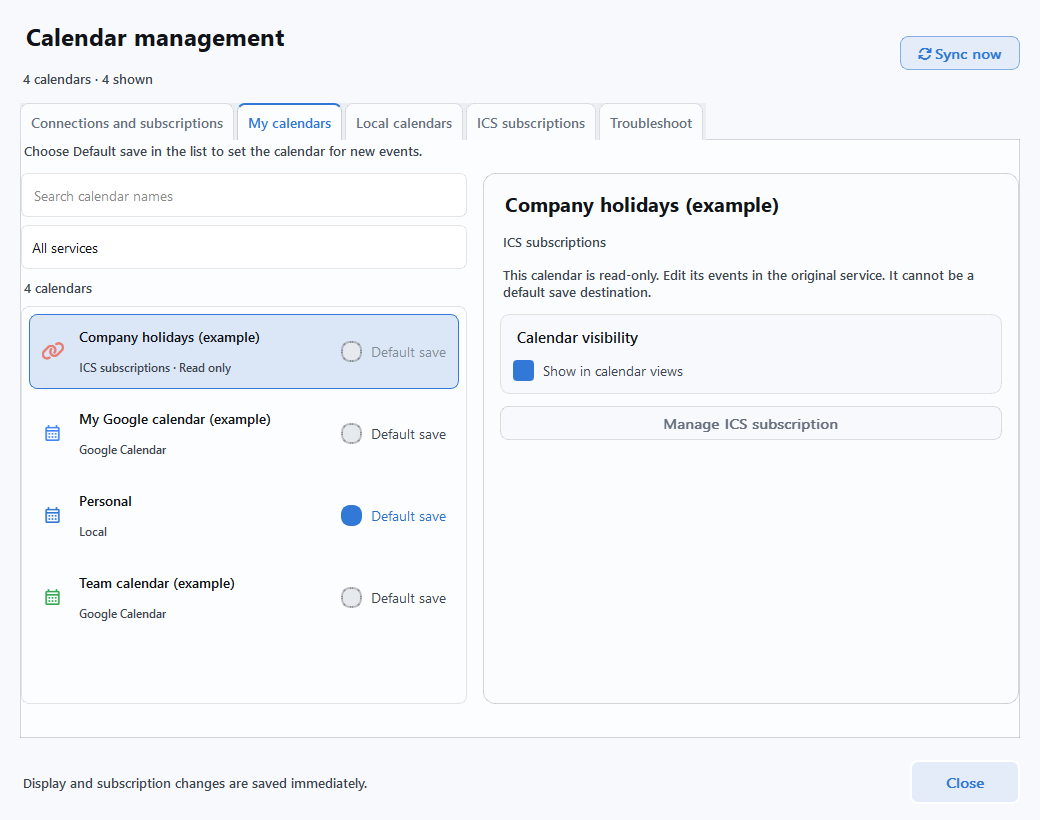
- Enable visibility in ‘My calendars’.
Select an imported calendar and enable Show in calendar views in its details. If an event exists in the original service but is missing here, check this setting first.
- Choose where new events will be saved.
To create new events in an external calendar, select Default save beside a calendar you can write to. Read-only calendars cannot be selected. You can also check the destination under Save new events to on the main calendar.
Three settings that are easy to confuse
- Import / calendar selection
- This chooses which calendars receive changes from the original service. Previously imported events may remain when you deselect a calendar. In Google, changes to editable events that remain can still be sent to the original service even when import is off, so deselecting is not the same as disconnecting.
- Show in calendar views
- This controls visibility only. Hiding a calendar keeps its sync and default save settings. You can also change visibility with the Visible button on the main screen.
- Default save / Save new events to
- This sets the destination for newly created events. To create events in Google Calendar, select that Google calendar rather than a local calendar.
If you create a test event, choose a calendar you can write to. Editing or deleting the event and then syncing also changes it in the original service. Rename Google calendars in Google Calendar itself.
AUTOMATIC UPDATES
04. Set up automatic updates
Automatic sync runs while Air Calendar is running. First check the result of a manual sync, then choose your preferred update behavior. Connecting an account and turning automatic updates on or off are separate settings.
- Google Calendar
- Open Connection settings → Sync settings → Automatically sync Google Calendar. It is on by default, with a regular interval of 10 minutes and quick sync after edits of 30 seconds. After changing an interval, click Save Settings. Manual sync remains available when automatic sync is off.
- Outlook · CalDAV services
- Save at least one calendar in 2. Choose calendars, then enable Automatically synchronize every 5 minutes. It is off by default for a new account. Manual Sync now is available even when automatic updates are off.
- ICS subscriptions
- Check both automatic updates for all ICS subscriptions and Refresh this subscription for each one. The automatic interval is 1 hour. If refresh is enabled for an individual subscription, you can use Refresh this subscription now even when overall automatic refresh is off.
For a quick toggle, use Refresh automatically on the service's card in Connections and subscriptions. This switch takes effect immediately.
View Google automatic sync settings
TROUBLESHOOTING
Troubleshooting
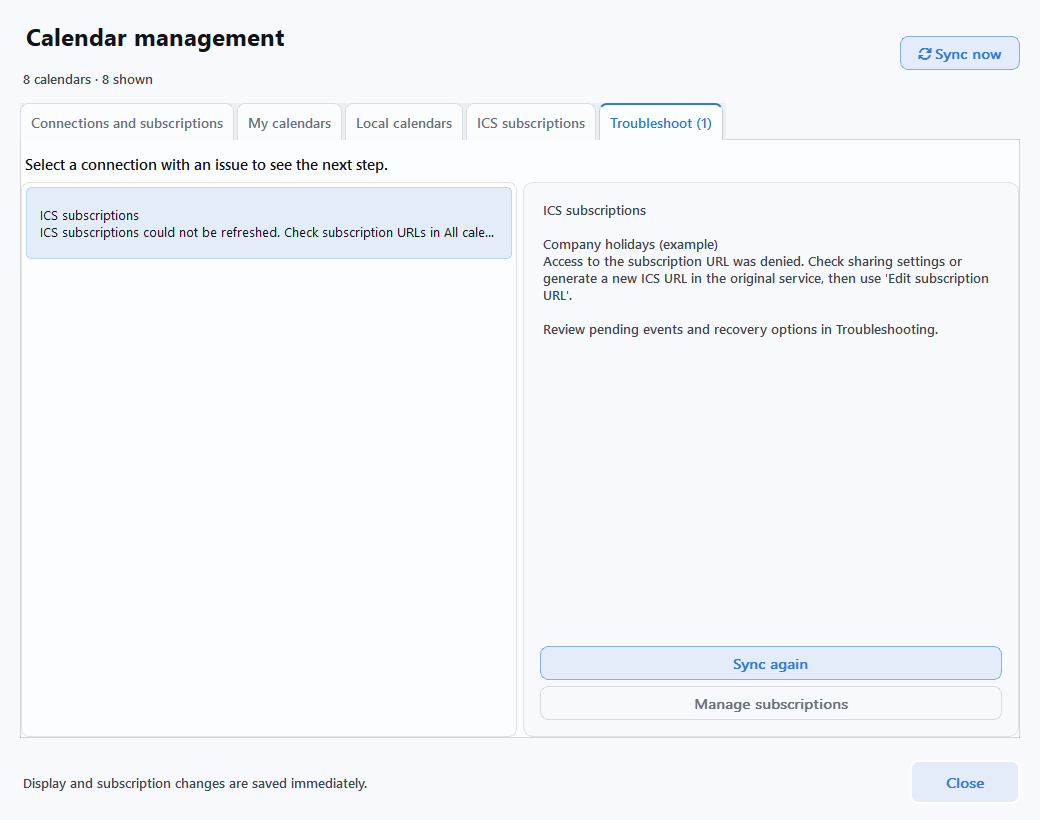
Open Calendar management → Troubleshoot and select the service. Depending on its status, the next action may be Reconnect, Choose calendars to import, Review pending items or Sync again.
View the common troubleshooting screen
- I signed in, but there are no events
- Check in this order: ① Did you select calendars to import and save? → ② Did Sync now finish? → ③ Is My calendars → Show in calendar views enabled? → ④ Are you viewing the original event's date? For Outlook and CalDAV, also check the range of 120 days back to 400 days ahead.
- I cannot click ‘Sync now’
- First finish connecting your account, select at least one calendar and save. If an operation is already running, wait for it to finish. After changing your selection, the button may become Save selection and sync.
- Google authentication fails
- Check that the JSON is for a Desktop app, the Calendar API is enabled and the test user email matches the account you sign in with. If approval is restricted, read the reason on Google's screen and contact the project owner or organization administrator. Use Reconnect to approve access again after expiration or permission changes.
- The connection fails even with an app-specific password
- Check the selected service, email or ID, and whether the app password is current and has not been revoked. Also check Apple password changes, Zoho's data center, your Fastmail plan, and Naver account or platform restrictions. Open Service authentication guide in the settings window for official help.
- The ICS address is valid, but no events arrive
- Format validation and fetching events are separate. Check that you entered a subscription address rather than a normal webpage URL, and that a private link has not expired. Select the existing subscription, use Edit subscription URL → Save changes, then refresh again.
- An event edited on both sides has different versions
- In Google settings, open Troubleshooting → Open Issues, compare the contents and choose Keep Local or Use Google Version. Google may record a conflict and apply the remote version first. For Outlook and CalDAV, open 3. Review issues in the service's settings window.
- Editing or deleting an event is restricted
- Edit read-only calendars and Naver or ICS events in the original service. Use the original service for recurring or invited CalDAV events, and for full Outlook recurrence rules or invitation responses.
- I want to stop using a connection
- To stop automatic updates, turn them off for that service. To disconnect an account, use Disconnect in its settings. For ICS, use Unsubscribe. These actions do not delete events in the original service; previously imported events may remain. To review or revoke the app's server-side access as well, check the service's account security settings.
Post the service name, the button you clicked and the error message on the user request board. Before uploading a screenshot or diagnostic report, check and hide email addresses, event details, file paths and credentials.